

Controls
Five touch layouts, a layout editor with shareable codes, three steering styles, gamepad support, and accessibility settings from colour-blind palettes to reduce motion.
BonnetBall is built for thumbs. You steer with a stick under your left thumb and jump, boost and air roll with buttons on the right, and every part of that can change: the layout, the steering, the size of the buttons and where they sit. Or connect a controller.

Picking a layout
The first time you play, the game lets you try each layout for ten seconds before you choose, with the default marked RECOMMENDED. PRO is the default because it has dedicated air-roll buttons. You can change at any time in SETTINGS › CONTROLS › LAYOUT, where HANDED mirrors the whole layout for left-handed play and BUTTON SIZE and OPACITY change every button at once. Not sure which suits you? Read the layout guide.
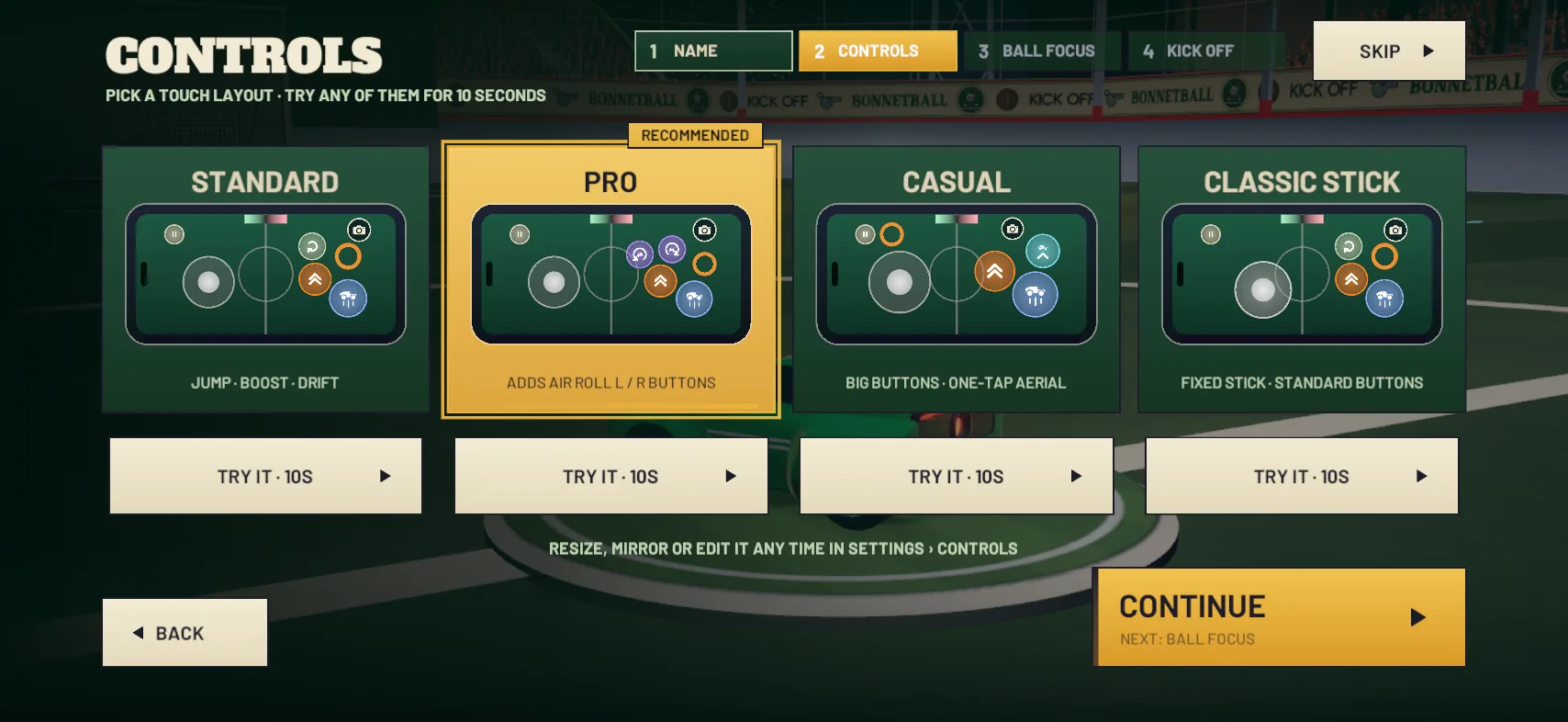
PRO
The default. JUMP and BOOST, plus ROLL L and ROLL R buttons for air roll.
STANDARD
JUMP, BOOST and DRIFT. Hold DRIFT and steer to air roll.
CASUAL
Big buttons and a one-tap AERIAL button that jumps and boosts together.
CLASSIC STICK
A fixed stick that stays in one place, with the standard buttons.
CLAW
Phones only. BOOST and the air-roll buttons move up for your index fingers.
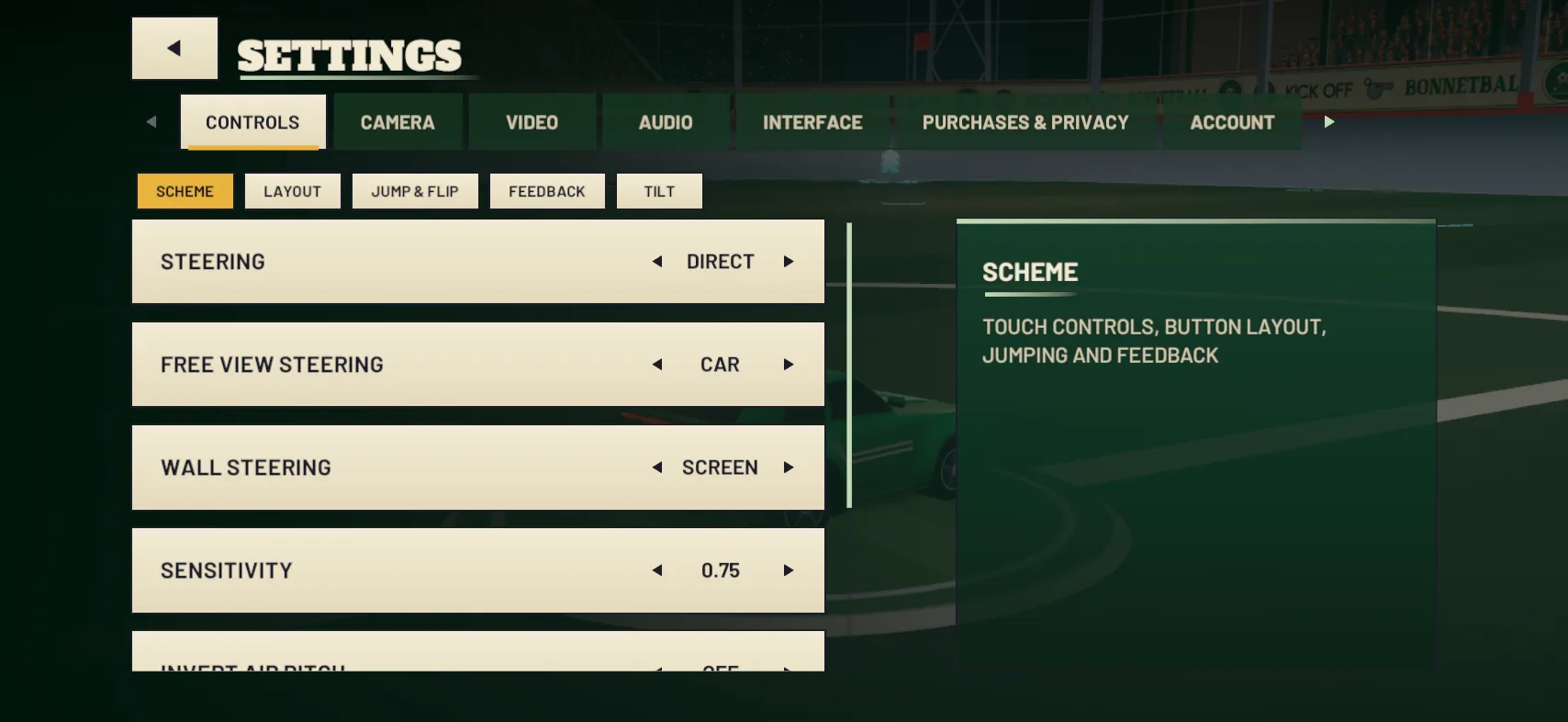
Steering: DIRECT, CLASSIC or TILT
Steering is separate from the layout, so any layout works with any style. With DIRECT, the default, the car drives towards wherever you push the stick on screen. With CLASSIC, left and right turn the car, like a controller. TILT, an experimental option, turns the phone into a steering wheel while the stick still drives, reverses and controls the car in the air.
The layout editor
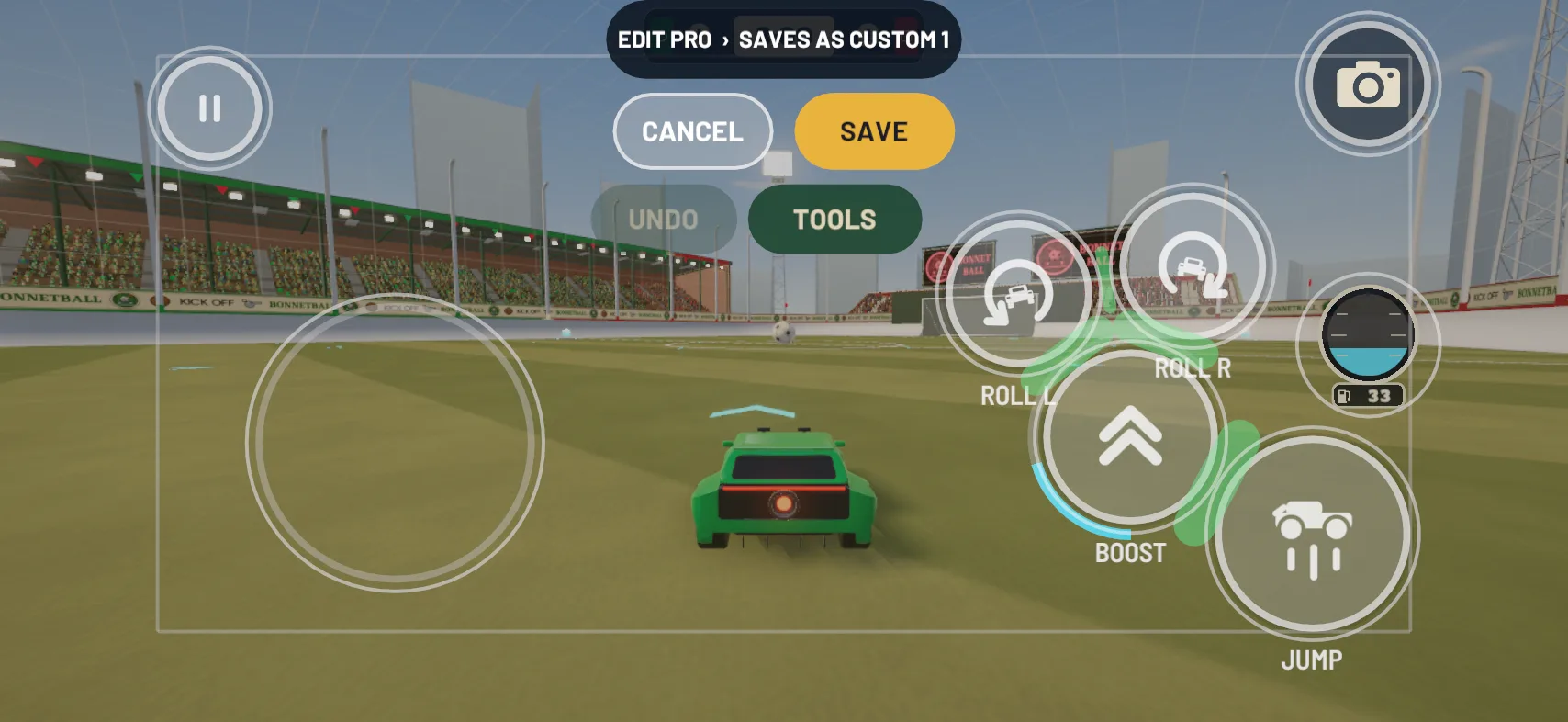
Pause a match and go to SETTINGS › CONTROLS › LAYOUT › EDIT LAYOUT. The match freezes behind the editor, and you drag a button to move it and pinch to resize it. Buttons snap to a grid and to each other, and a red ring warns you if one sits too close to another or over the scoreboard. TEST lights up whatever your thumbs would press. Hidden buttons such as FLIP and AERIAL wait in a tray, ready to drag onto the screen.
Built-in layouts never change: SAVE puts your version in one of three CUSTOM slots. COPY CODE turns a layout into a code starting BB1: that you can send to a mate, and PASTE CODE loads theirs.
Jumping and flipping
SETTINGS › CONTROLS › JUMP & FLIP decides how a second tap of jump picks between a flip and a double jump. You can also flip by swiping off the JUMP button, make every tap a full-height jump, and choose whether the air-roll buttons powerslide on the ground. More in how to flip and double jump.

Camera
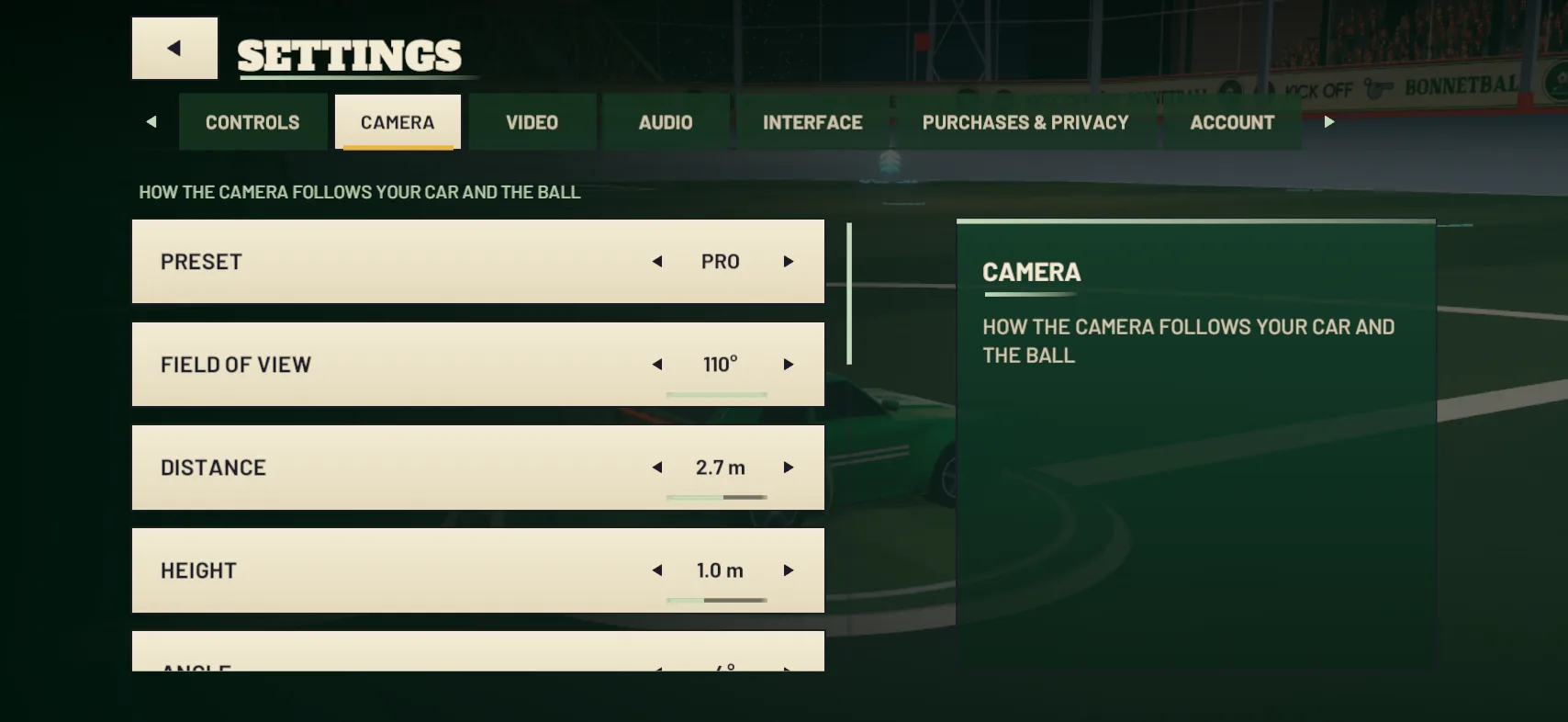
Choose a camera preset, PRO, CLOSE or WIDE, or set the field of view, distance, height and angle yourself. BALL FOCUS keeps the ball in view and is on when you start. Tap the button at the top right to look where your car points instead. When the ball is out of shot, an arrow at the edge of the screen points to it.
Playing with a controller
Connect a gamepad to your iPhone or iPad and the game shows CONTROLLER CONNECTED. Matches and menus both work with it, using the buttons below, and the touch controls stay on screen in case you want them.
The default mapping. Matches and menus both work with a controller.
| ACTION | BUTTON |
|---|---|
| Steer | Left stick |
| Accelerate / reverse | Right trigger / left trigger |
| Tilt the nose in the air | Left stick up and down |
| Jump (tap again to double-jump or flip) | Bottom face button |
| Boost | Right face button |
| Powerslide and air roll (hold) | Left face button |
| Air roll left / right | Left / right bumper |
| Ball focus | Top face button |
| Look around | Right stick |
| Pause | Start |
Accessibility

TEAM COLOURS
Green and red by default, or blue and yellow, or purple and yellow, for colour blindness.
SHAPE CUES
A circle marks the home team and a square the away team, next to the team colours. On by default.
TEXT SIZE
100%, 115% or 130%, in the menus and the match HUD.
REDUCE MOTION
Turns off camera shake, the speed zoom, screen flashes and replay zooms.
HANDED
Mirrors the whole touch layout for left-handed play.
BUTTON SIZE AND OPACITY
Scale every button from 85% to 130%, and set how solid they look.
HAPTICS
Full, light or off, with a strength setting.
NIGHT SOUND
Evens out loud and quiet sounds for low-volume play.
Watch and learn
-
 VIDEO · 0:19
How to air roll
Air roll spins your car in mid-air: jump, hold an air-roll button, and let go when your wheels face the ground.
-
 GUIDE · BEGINNER · 4 MIN
Best touch controls: picking and editing your layout
Five touch layouts on iPhone, four on iPad, three steering modes and a layout editor with three CUSTOM slots. Which to pick, and how to make it your own.
-
GUIDE · INTERMEDIATE · 4 MIN
How to air roll
Jump, hold ROLL L or ROLL R, and let go when your wheels face the ground. How to air roll left and right on every touch layout and on a gamepad.
More of the game
FULL TIME · KICK-OFF IS YOURS
Your season starts here.

Android: coming later
 Scan with your iPhone or iPad
Plays offline · No sign-in needed · Nothing random · Cosmetic-only purchases
You’re on the team sheet.
Check your inbox to confirm. We’ll only write when there’s news worth the stamp.