GUIDE · BEGINNER · 4 MIN READ

Best camera settings

What every camera setting does, the values behind the PRO, CLOSE and WIDE presets, and how to set the view up for the way you play.

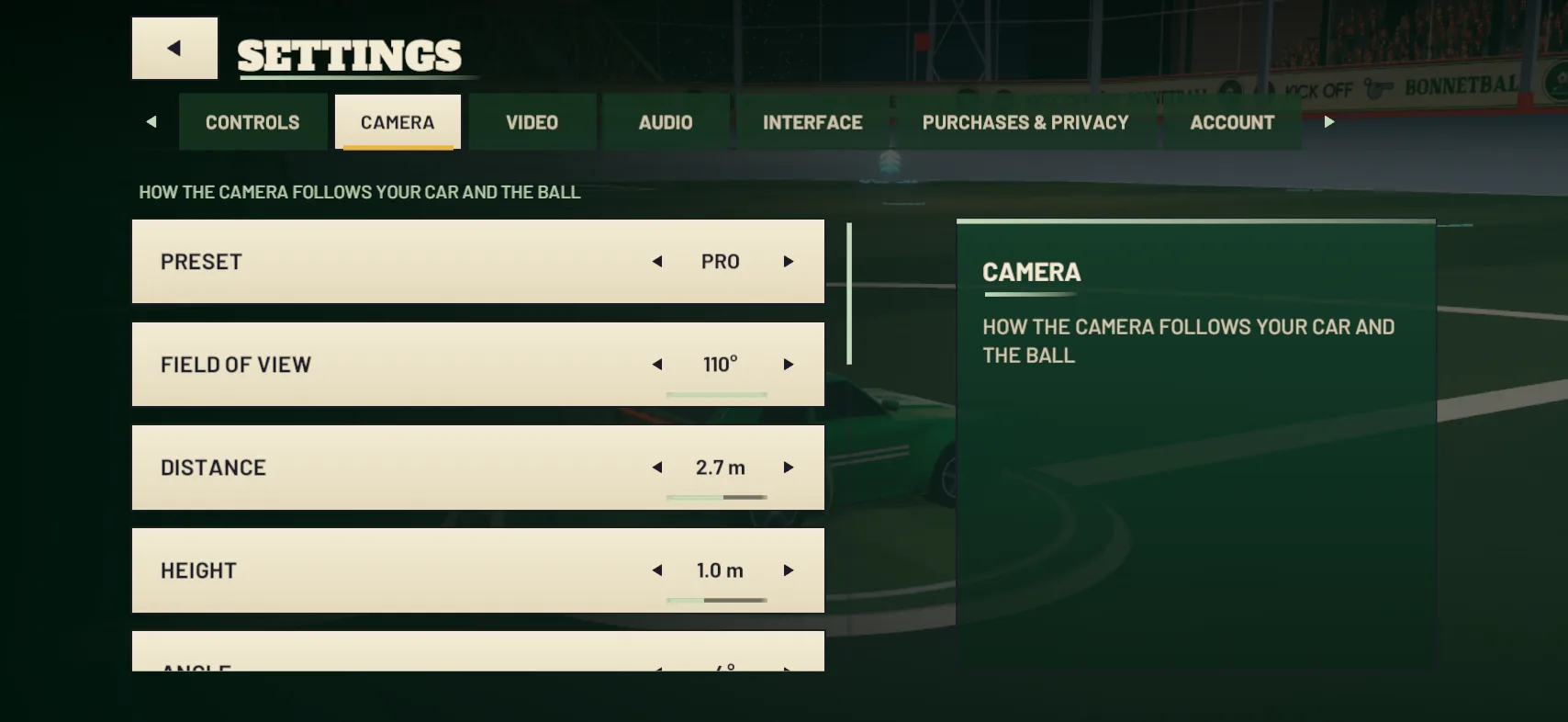
The best camera settings for most players are the PRO preset, the default: a 110° field of view, with the camera 2.7 m behind your car and 1.0 m above it. The camera settings are in SETTINGS › CAMERA, and changing any value turns the preset into CUSTOM, so start from PRO and change one thing at a time.

Where to find the camera settings

The camera has its own page, SETTINGS › CAMERA, which also holds FOCUS BUTTON, BALL ARROW and CAMERA SHAKE. Open it from the pause menu during a match and the page shows a LIVE PREVIEW, the easiest way to judge a change.

The three presets

The PRESET row offers three “READY-MADE CAMERA SETUPS”:

Setting PRO CLOSE WIDE
FIELD OF VIEW 110° 100° 110°
DISTANCE 2.7 m 2.3 m 3.2 m
HEIGHT 1.0 m 0.9 m 1.2 m
ANGLE −4° −3° −5°
CAMERA LAG 0.45 0.6 0.4

PRO is the default. It isn’t the PRO touch layout or PRO bots, which share the name. The row’s help line goes on: “CHANGE ANY VALUE BELOW TO MAKE YOUR OWN.” Do that and the PRESET row shows CUSTOM.

What each setting does

Each row’s help line:

  • FIELD OF VIEW, 60° to 110°: “HOW WIDE THE CAMERA SEES. WIDER SHOWS MORE OF THE PITCH.”
  • DISTANCE, 1.0 to 4.0 m: “HOW FAR BEHIND THE CAR THE CAMERA SITS.”
  • HEIGHT, 0.4 to 2.0 m: “HOW HIGH ABOVE THE CAR THE CAMERA SITS.”
  • ANGLE, −15° to 0°: “HOW STEEPLY THE CAMERA LOOKS DOWN AT THE CAR.”
  • CAMERA LAG, 0.00 to 1.00: “HOW FAR THE CAMERA LAGS BEHIND WHEN YOU SPEED UP. HIGHER KEEPS IT CLOSER.” So a higher number means less lag, not more.
  • LOOK SPEED: “HOW FAST THE CAMERA TURNS WHEN YOU LOOK AROUND.” On touch controls, drag in the area above your buttons to look around. INVERT LOOK, OFF by default, swaps the directions: X, Y or BOTH.
  • SWITCH SPEED: “HOW QUICKLY THE VIEW SWINGS BETWEEN FREE VIEW AND BALL FOCUS.”
  • WALL CAMERA, SURFACE by default: “SURFACE: THE VIEW ROLLS WITH THE WALL. WALLS: STAYS LEVEL ON THE CEILING. LEVEL: THE HORIZON ALWAYS STAYS FLAT.”

How to set up your camera, step by step

  1. Start from PRO. Its distance, height, angle and lag all sit between CLOSE and WIDE, so you can move either way from it.
  2. Keep FIELD OF VIEW as wide as you’re comfortable with. PRO already uses 110°, the widest it goes, and wider shows more of the pitch. Bring it down only if a narrower view suits you better.
  3. Adjust DISTANCE and HEIGHT. Both move in 0.1 m steps. Aim to see the ball and your car’s nose together: go a step further back or higher if the ball keeps slipping off screen, or closer and lower if your car feels small and far away.
  4. Tune CAMERA LAG. It moves in 0.05 steps. Raise it if the camera falls too far behind when you boost, and lower it if you’d rather it hung back.
  5. Pick a WALL CAMERA. SURFACE rolls the view with the wall. If that puts you off, LEVEL keeps the horizon flat, and WALLS stays level on the ceiling.
  6. Check it in a match. Pause, open SETTINGS › CAMERA and watch the LIVE PREVIEW as you change things. Then play for a while before you change anything else.
Settings › Camera: preset, field of view, distance and height

Ball focus: on or off?

BALL FOCUS decides what the camera follows, and it’s on when you first start the game. The first-run BALL FOCUS step explains the choice:

  • BALL FOCUS ON: “THE CAMERA KEEPS THE BALL IN VIEW. BEST FOR READING THE PLAY.”
  • BALL FOCUS OFF: “THE CAMERA LOOKS WHERE YOUR CAR POINTS. FOR AERIALS AND DRIBBLES.”

A good habit is to leave it on and switch it off for the moments that need it: lining up aerials once you’re comfortable with them, or carrying the ball on your roof when you dribble.

Switch it any time in a match with the CAMERA / BALL button, top right, or the top face button on a controller. FOCUS BUTTON sets how that button works: on TOGGLE, the default, each tap switches BALL FOCUS on or off; on HOLD, it’s on only while you hold the button. FOCUS ICON shows whether it’s on, and BALL ARROW, on by default, puts an arrow at the edge of the screen that points to the ball when it’s out of view.

A green car flies up to meet the ball high above the goal at BONNET PARK while the crowd behind the goal cheers

Settings for comfort

If the view moves more than you’d like, two settings calm it down:

  • CAMERA SHAKE is on by default: “SHAKE FROM GOALS, BUMPS AND HARD LANDINGS.” Set it to OFF to lose the shake.
  • REDUCE MOTION, in SETTINGS › INTERFACE › ACCESSIBILITY, is off by default. Its help line: “TURNS OFF CAMERA SHAKE, THE SPEED ZOOM, SCREEN FLASHES AND REPLAY ZOOMS. MENUS FADE INSTEAD OF SLIDING.”

Which preset should I start with?

PRO, for most players. If it doesn’t feel right, try one of the others:

  • WIDE keeps the same 110° field of view but sits further back, at 3.2 m, and higher, at 1.2 m, so you see more around your car.
  • CLOSE is tighter on the car: a narrower 100° view, 2.3 m back and 0.9 m up. It also has the highest CAMERA LAG of the three, 0.6, so it stays closest when you speed up.

Once the view feels right, set up your buttons with the best touch controls.

Updated 20 October 2026

All guides
  • GUIDE · BEGINNER · 4 MIN

    How to play BonnetBall: a beginner’s guide

    New to car football? How a match works, what happens in your first game against the bots, and which moves to learn first.

  • GUIDE · BEGINNER · 4 MIN

    How to win kickoffs

    Hold BOOST all the way and flip into the ball when you’re close. How kickoffs work, the times the KICKOFFS drill asks for and why bots beat you to it.

  • GUIDE · BEGINNER · 3 MIN

    How boost works: pads, the tank and when to save it

    A full tank lasts about three seconds. Where the 34 boost pads are, what each one gives, what TOP SPEED means and when to keep boost in reserve.